
Just switching Naver Map to English can reduce navigation stress in Korea a lot. This doesn’t mean Google Maps is always wrong in Korea, but on the ground it often shows unclear directions or business info.
The gap becomes obvious when you need details “right now,” like alleys, subway exits, or bus arrivals. That’s why I tell first-time visitors to install both Naver Map and KakaoMap.
Below are the English setup steps and practical search tips even if you don’t read Korean. I kept the flow simple so you can follow it on your phone immediately.
What we’ll cover today
- Four common situations where Google Maps gets shaky in Korea
- A basic strategy to use Naver Map and KakaoMap together
- Step-by-step English setup for iPhone and Android
- Search input methods and sharing tips without Korean
- A checklist for exits, taxis, and a simple saving routine
When Google Maps feels inconvenient in Korea

In Korea, Google Maps often feels limited around “fresh local data” and “public transit details.” You might see an open place marked as closed, or a new spot not showing up at all.
Routing can also feel main-road biased, making alley turns or entrance-based directions less clear. The tighter your schedule, the safer local apps become.
Here are four common cases. First, when meeting based on subway exit numbers, exit guidance can be lacking. Second, bus arrivals and transfer paths may differ from what you actually experience.
Third, Korean address systems and building-name searches can return inconsistent results. Fourth, reviews and photos may not be up to date, so you miss the “current vibe.”
A simple Naver Map and KakaoMap strategy

At first, you may want to stick to just one app, but in Korea it’s faster to split roles.
Typically, use Naver Map to search places and check business details, then use KakaoMap for navigation and a clear screen to show taxi drivers.
The reason is simple: Naver tends to be strong in local search data, and KakaoMap’s navigation UI often feels more straightforward.
Another tip is choosing your main app based on “saved places.” On longer trips, your folders become your itinerary, so putting saves into the app you find easiest reduces confusion later.
You can save in one app and still navigate with both.
Naver Map English setup steps

For Naver Map English settings, it’s faster to check both “in-app settings” and “device language.” If the app stays in Korean, the device language may be taking priority in some cases.
Follow this order and you’ll usually get there quickly.
iPhone iOS steps
- Open Settings, find Naver Map (or the Naver Map app entry), and if an app language option appears, choose English.
- If there’s no app language option, go to Settings > General > Language & Region, switch iPhone language to English, then relaunch the app.
- If it still doesn’t switch, updating the app and reinstalling is often quicker.
Android steps
- In Settings > System > Languages, move English to the top, then reopen Naver Map.
- Depending on your Android version, if there’s per-app language, set Naver Map to English there.
- Even just for searching, adding a Korean keyboard makes copy-paste smoother when needed.
KakaoMap English settings and practical workarounds
KakaoMap often shows more English when your device language is English, but depending on version and device, some Korean may remain.
In that case, instead of aiming for “fully English,” it’s more practical to memorize the positions of four key buttons.
If you can quickly tap Search, Directions, Favorites, and Share, you can get where you need to go.
Here’s a good workaround. When a destination only appears in Korean, find it on Naver first, then copy the address or place name and paste it into KakaoMap to improve search success.
If KakaoMap gives a clearer route, screenshot it and send it to your travel partner. Mixing them like this works well.
Search and sharing methods without Korean
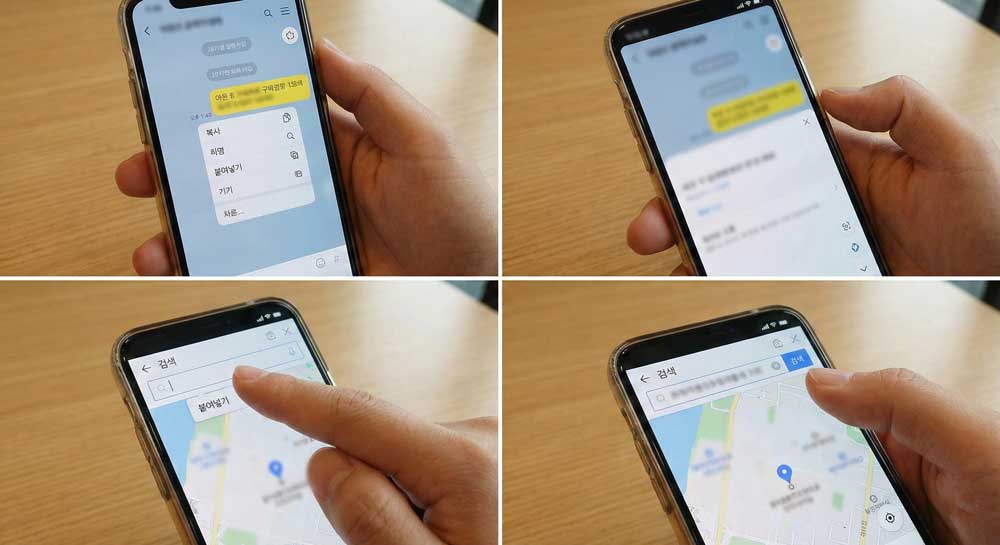
The patterns that work without Korean are predictable. First, copy the shop name in Korean from Instagram or blogs and paste it directly.
Second, copy an address from your hotel front desk or a cafe note, paste it into search, then choose the right result by photos and ratings.
Third, subway stations often have English names, so search the station in English first and confirm the exit by number.
Sharing is easier if you split it into “links” and “screenshots.” Link sharing is precise when your companion uses the same app, while screenshots work regardless of the app.
In Korea, showing the destination screen to a taxi driver is often faster than explaining, so saving it in Favorites can save time.
If you’re planning more Korea travel essentials, it also helps to read a post about choosing a data eSIM or SIM so your navigation doesn’t get interrupted.
Practical checklist and a comparison table
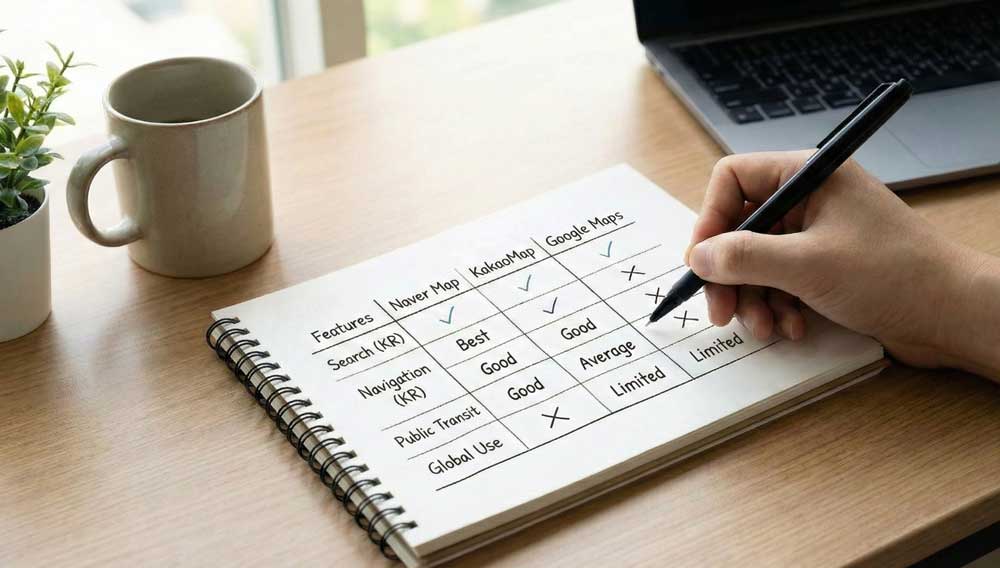
The checklist below is built for “getting lost less today.” The goal isn’t just installing apps—it’s locking in language and a simple saving routine.
5-minute checklist before you go
- Set your device language to English and relaunch both Naver Map and KakaoMap once
- Create only two favorites folders: cafes/food and attractions
- Copy your hotel address and save it in both apps
- Save meeting points by subway exit numbers rather than station names
- Create a screenshot album for taxi destinations
Quick table: Naver Map vs KakaoMap
| Item | Naver Map | KakaoMap |
|---|---|---|
| Place search | Often strong for checking local business details | Often simple and fast |
| Navigation UI | Feature-rich, can feel complex at first | Many find it intuitive for first use |
| Bus info | Strength varies by area | Many find arrivals easy to check |
| Sharing | Convenient link sharing | Easy to share directions screens |
One last reminder: once your Naver Map English setup is done, searching and saving get faster, and keeping KakaoMap mainly for navigation keeps things stress-free.
When you get used to this combo, Google Maps often becomes just a backup checker in many situations.
FAQ
Q1 Should I avoid Google Maps entirely in Korea
A No—sometimes it’s fine, but local apps are often more convenient for transit details and local business info.
Q2 If Naver Map won’t show English, what should I check first
A Check whether your device language is English, then update and relaunch the app first.
Q3 KakaoMap isn’t fully in English—won’t that be annoying
A If you learn the key button positions, navigation and sharing can still be fast enough.
Q4 I can’t read Korean—how do I search for restaurants
A Copy-paste the Korean name, then pick the right result using photos and reviews.
Q5 What if it’s hard to explain the destination to a taxi driver
A Show the destination screen, and if possible keep the Korean name or address visible for easier communication.
Do one thing today: verify your Naver Map English setting on your phone and save your hotel and first destination into Favorites.