
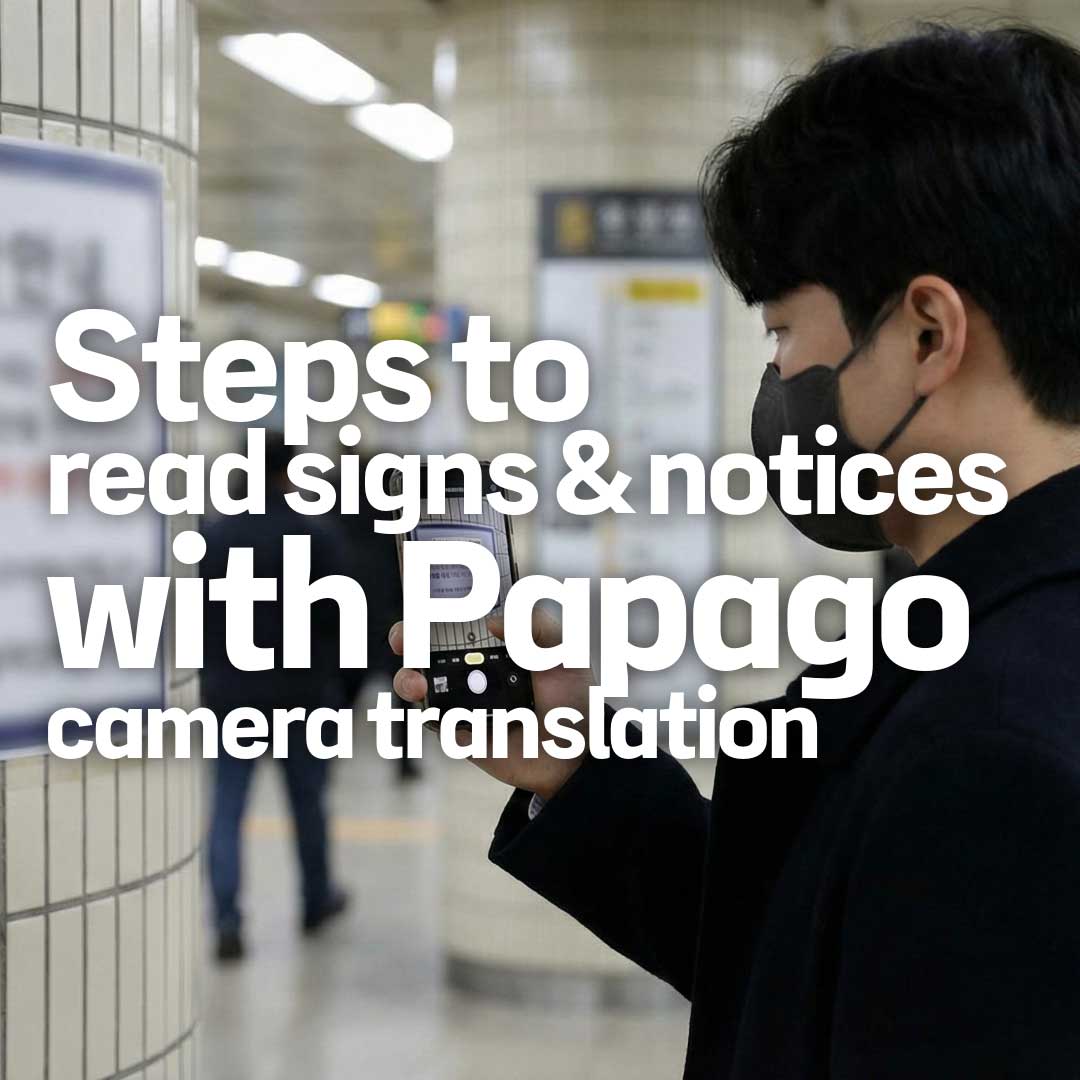
If you use Papago image translation well, menus and notices in Korea suddenly become “readable information.”
Google Translate is helpful too, but Korean honorifics and indirect wording can come out stiff.
Papago often carries Korean nuance more naturally, which can reduce misunderstandings during travel or when reading announcements.
One of the best parts is that many Koreans feel most comfortable using Papago. When you ask someone on the spot “What does this mean,” it’s easier to keep the conversation going while looking at Papago together.
Today I’ll focus on image translation with simple settings and a practical routine you can follow immediately.
What we’ll cover today
- Why Papago works well for travel and key differences vs Google Translate
- How to enable Papago image translation and check permissions
- A quick workflow for menus, signs, and public notices
- Re-asking templates to preserve nuance when output sounds odd
- A checklist for saving, screenshots, and offline backup
Why Papago is strong with nuance
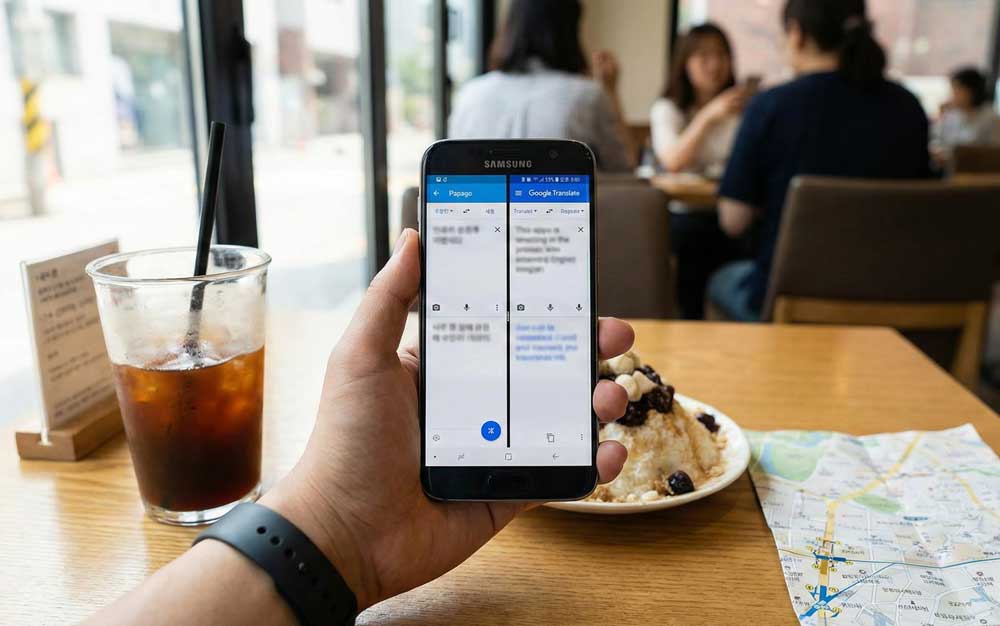
In Korean, the same meaning can feel very different depending on tone. Phrases like “if possible” or “please” can sound overly blunt if you translate word-for-word.
Papago often handles this indirect style more smoothly, which can make public notices feel less stressful to interpret.
For travelers, accuracy matters, but it’s often even more urgent to tell whether a message is a friendly information or a warning.
Usability matters too. In Korea, many people are comfortable with Papago, so showing the translation screen and getting confirmation feels natural.
Even if you meet someone who speaks English well, it’s easy to ask “Is this translation right,” which can make it feel more reliable in real situations.
Enabling Papago image translation and permissions
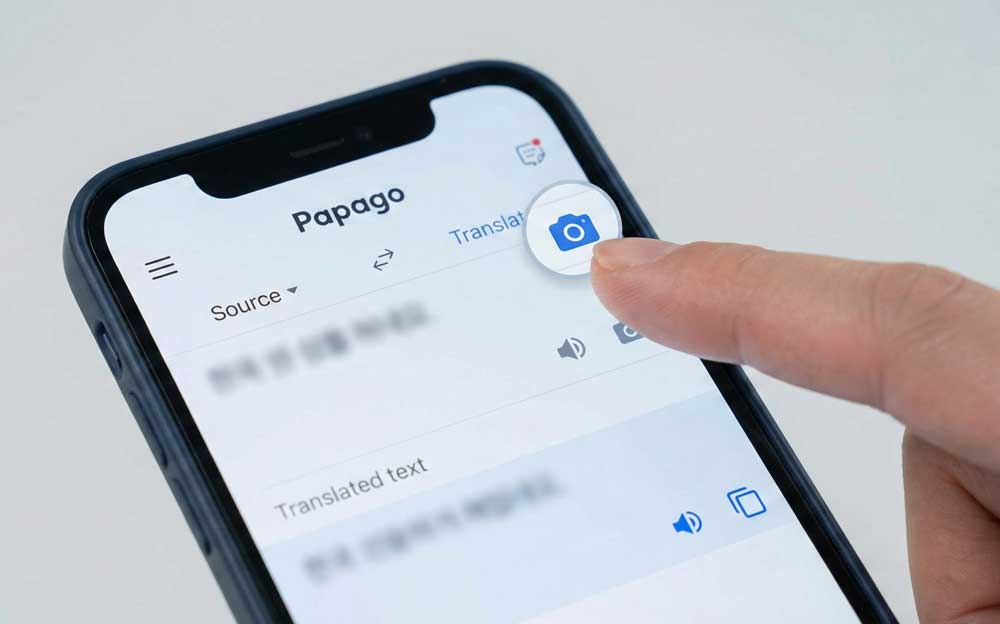
Papago image translation mainly comes in two modes: “camera translation” and “import image.”
Camera translation is great for signs and posters on the spot, while import-image is better for reviewing menu photos or screenshots calmly.
Most first-time issues are permission-related, so checking the items below often solves it.
Permission checklist
- Confirm camera permission is allowed
- Confirm photo access isn’t restricted
- If data is unstable, try once on Wi-Fi
- If the app freezes, force close and reopen
A practical routine for translating menus

Restaurant menus often have small fonts, abbreviations, and lots of photos.
If you capture everything in one shot, translations can get messy, so shooting in sections is more stable. Words like “add,” “change,” “refill,” and “included” affect ordering conditions, so capturing those lines separately reduces mistakes.
My recommended routine is simple. First, translate the menu category section to understand the big picture, then translate only three items you’re interested in with close-ups.
Finally, capture key options like allergy notes or spice levels separately. This sequence saves time and helps you decide faster.
Cautions for translating signs and public notices
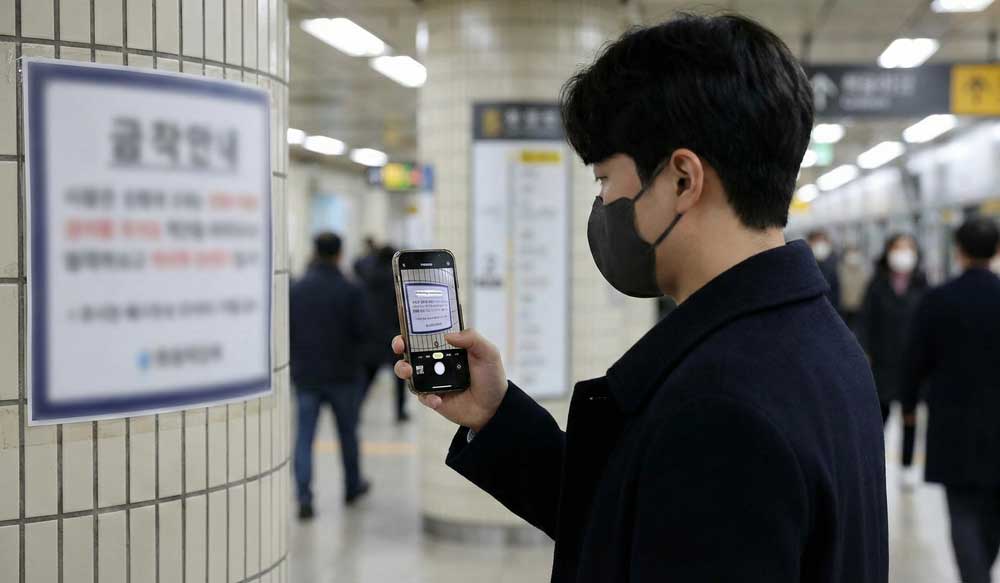
Signs are usually light information, so even if the translation is slightly awkward you can infer the meaning. Public notices are different.
If you see words like “no entry,” “control,” “restricted use,” or “safety,” it’s better to double-check.
Translate the image first, then copy the key sentence into text translation to cross-check and reduce mistakes.
Another issue is proper nouns. Station names, exit numbers, bus numbers, and building names can become confusing if the translator tries to “interpret” them.
For these, reading them as-is matters more than translating, so it’s safer to screenshot the original with numbers, letters, and Korean intact.
Re-asking templates when translations sound awkward
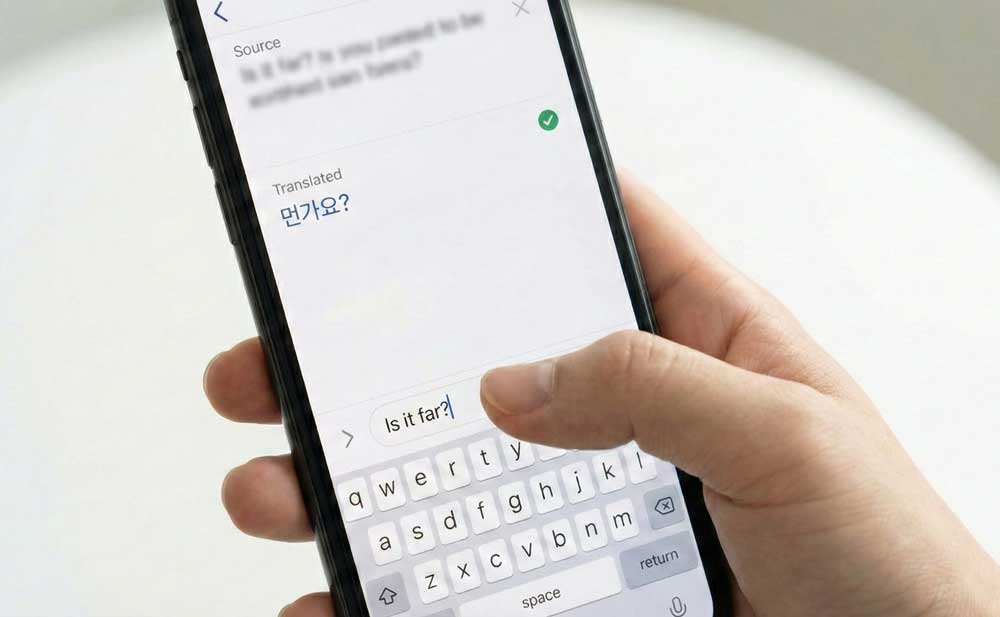
When a translation feels off, it’s better to change your question into something short rather than adding long explanations.
Usually, the patterns below work fastest. You can copy and use these templates during your trip.
- Is this sentence closer to a warning or a general information
- Pick only three key words from this
- Is the tone polite or firm
- Is this something I must do or must not do
Summary checklist and step-by-step guide
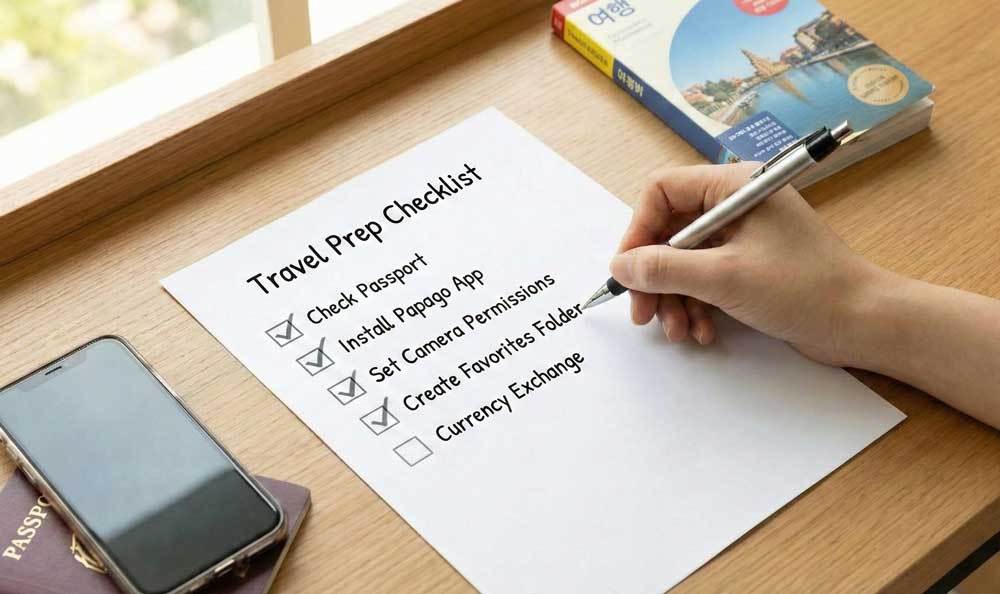
Below is a step-by-step guide you can apply today. Once you do it once, you can repeat the same flow throughout your trip.
And because many Koreans are comfortable with Papago, it’s not awkward to show your screen and ask for a quick confirmation when needed.
Step-by-step guide in 7 steps
- Install Papago and allow camera and photo permissions
- Test camera translation quickly on a simple sign
- Shoot menus in sections
- Take an extra shot for options like spice allergy included
- For public notices, translate the image then re-translate only the key sentence as text
- Save key screens as screenshots to show taxi drivers or staff
- If it’s ambiguous, use the template questions to confirm nuance
Papago image translation often feels like one of the strongest tools for “understanding the Korean in front of you right now.”
And since it’s an app many Koreans commonly use, it also connects naturally when you ask for help on the spot.
Don’t stop at installing today—translate one real menu photo and create a hotel-address screenshot, and tomorrow will feel much easier.
FAQ
Q1. Does Papago image translation require data
A. It depends, but image processing and translation often require data, so Wi-Fi or an eSIM makes it easier.
Q2. What’s the biggest difference between Google Translate and Papago
A. Many people find Papago feels more natural with Korean honorifics and indirect wording.
Q3. What if menu translations look weird
A. Don’t capture everything at once—shoot by sections and capture option lines separately for better accuracy.
Q4. Any words I should double-check in notices
A. If you see terms like no entry, control, restriction, safety, fees, or refunds, re-translate the key sentence.
Q5. Can Papago be enough if I can’t read Korean
A. Yes—copy-paste plus photo translation solves most cases, but for proper nouns and numbers, capturing the original is safer.
Your next action: open Papago, test camera translation once, then translate and save one menu photo in sections for the restaurant you’ll visit today.